Motion Blur Effect Prompt: 30+ AI Prompts for Gemini and ChatGPT
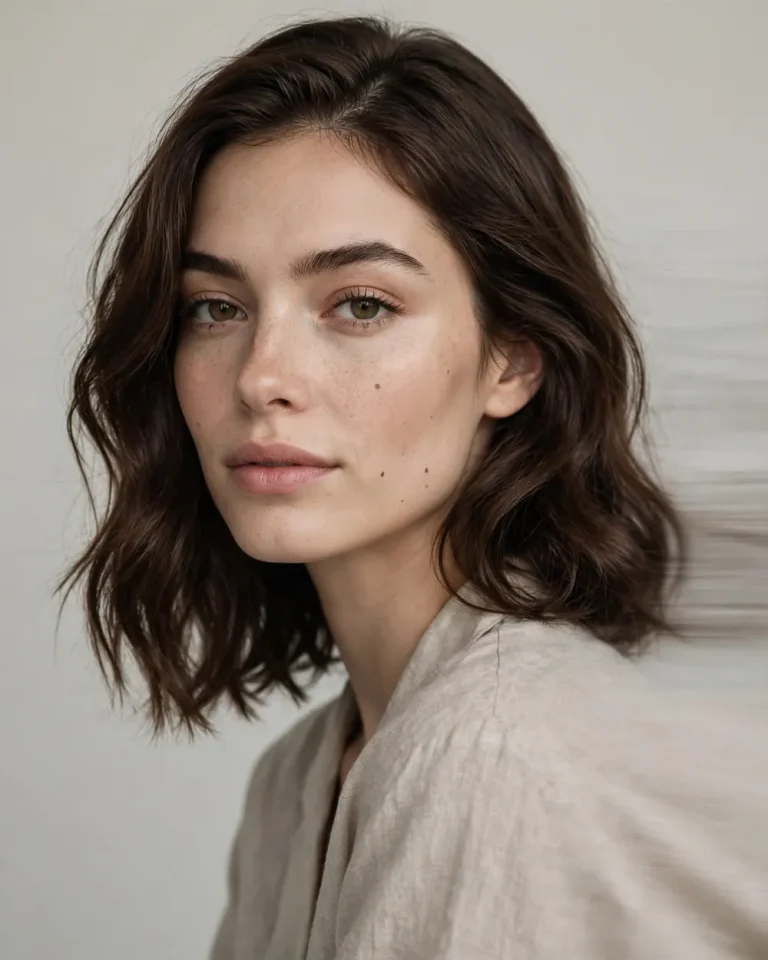
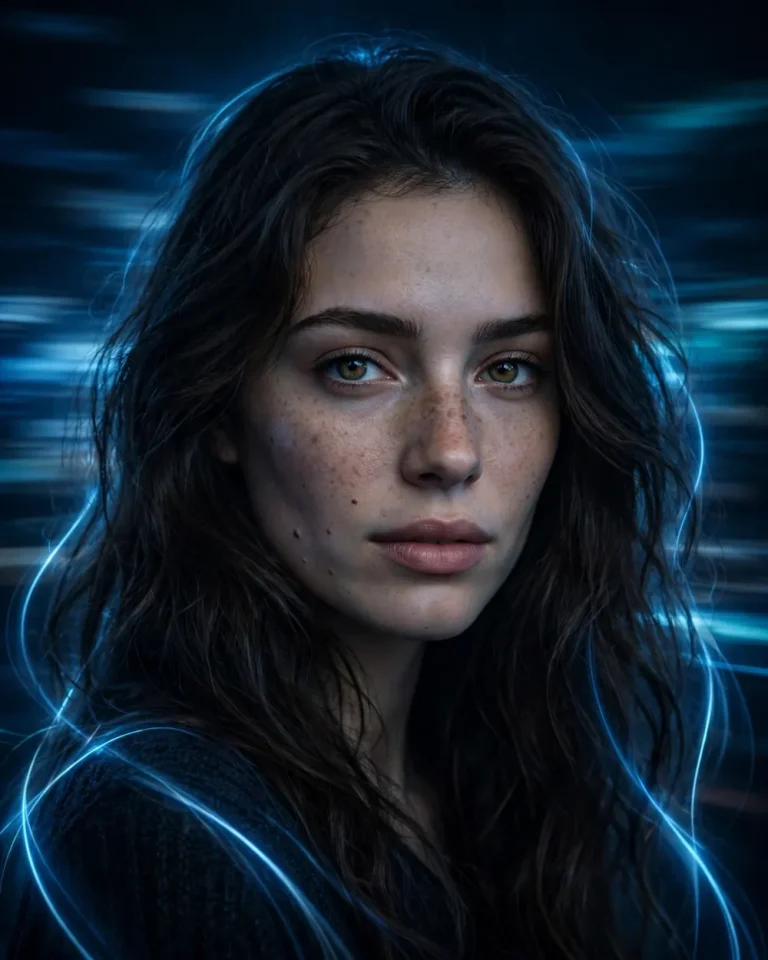
A motion blur effect prompt helps you create cinematic AI photos with realistic movement, soft blur, light trails, and dynamic visual effects. You can use these prompts in Gemini or ChatGPT to transform ordinary portraits into creative motion blur images while keeping your original face and identity recognizable.
Motion blur can make a photo look like a professional long-exposure photograph. It can show movement in hair, clothes, vehicles, lights, or the background while keeping the main subject sharp.
Best Motion Blur Effect Prompts for AI Photo Editing
These motion blur effect prompts are designed for Gemini and ChatGPT. Upload your photo, copy a prompt, and let the AI apply the requested effect while preserving your facial features.
1. Half-Face Motion Blur Portrait
Create a cinematic close-up portrait using my uploaded photo as the reference. Preserve my exact facial identity, face shape, skin tone, natural skin texture, and all recognizable features. Apply a half-face motion blur effect where one side of the face remains sharp and detailed while the other side has smooth horizontal motion trails. Use dramatic low-key lighting, subtle shadows, realistic pores, and a dark cinematic background. Make the blur look like a professional slow-shutter photograph rather than an artificial filter. Shoot with an 85mm lens, shallow depth of field, and a 4:5 aspect ratio. Do not beautify, reshape, or change my face.
2. Ghosting Motion Blur Portrait
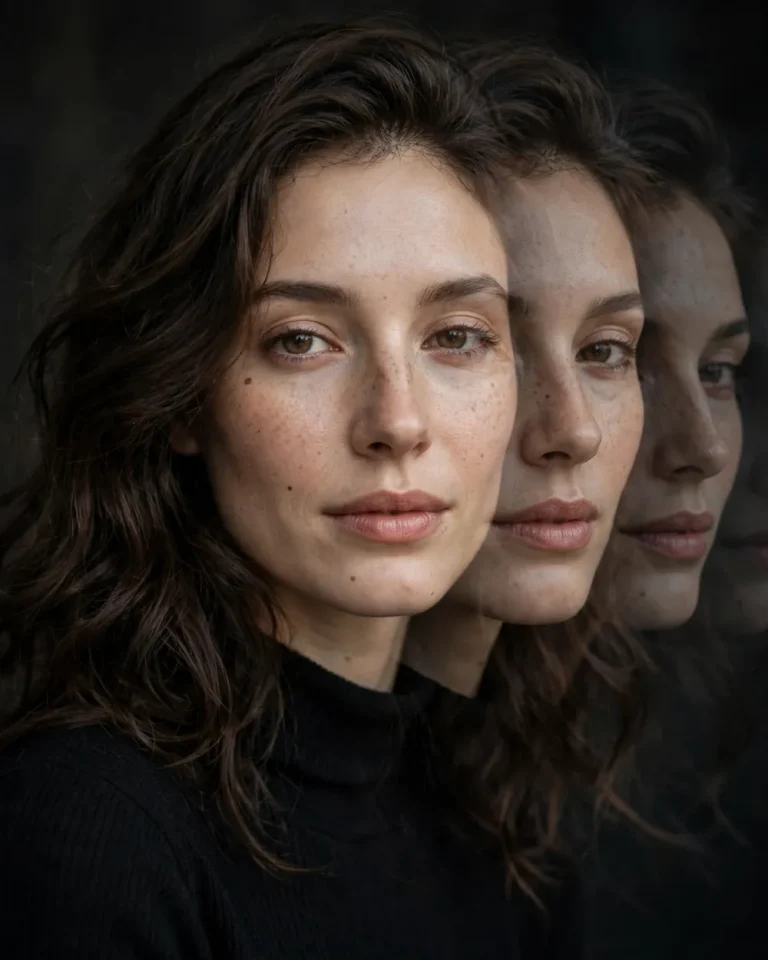
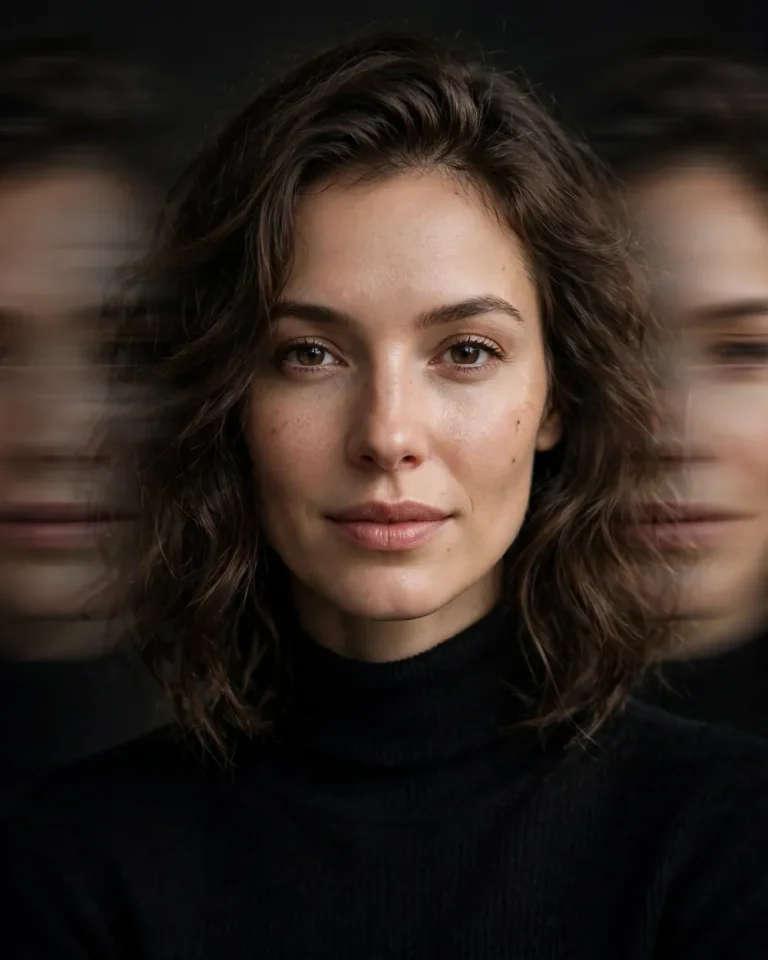
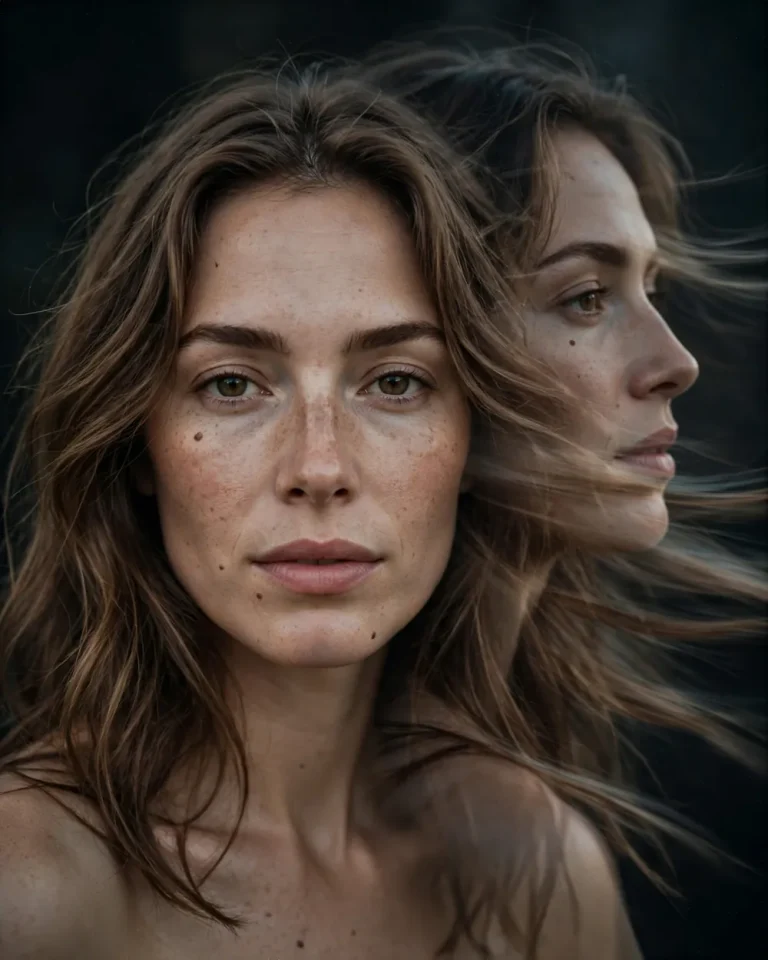
Transform my uploaded photo into a creative ghosting portrait with a realistic multiple-exposure motion blur effect. Keep the original face as the main sharp subject while creating two or three subtle transparent facial motion copies slightly shifted to the side. Preserve my exact identity, facial proportions, skin tone, hairstyle, and expression. Use soft studio lighting, a dark neutral background, natural skin details, and smooth overlapping motion trails. The result should look like an artistic professional camera exposure, not a distorted AI face. Keep the original face clearly recognizable and use a 4:5 portrait composition.
3. Red Light Cinematic Face Blur
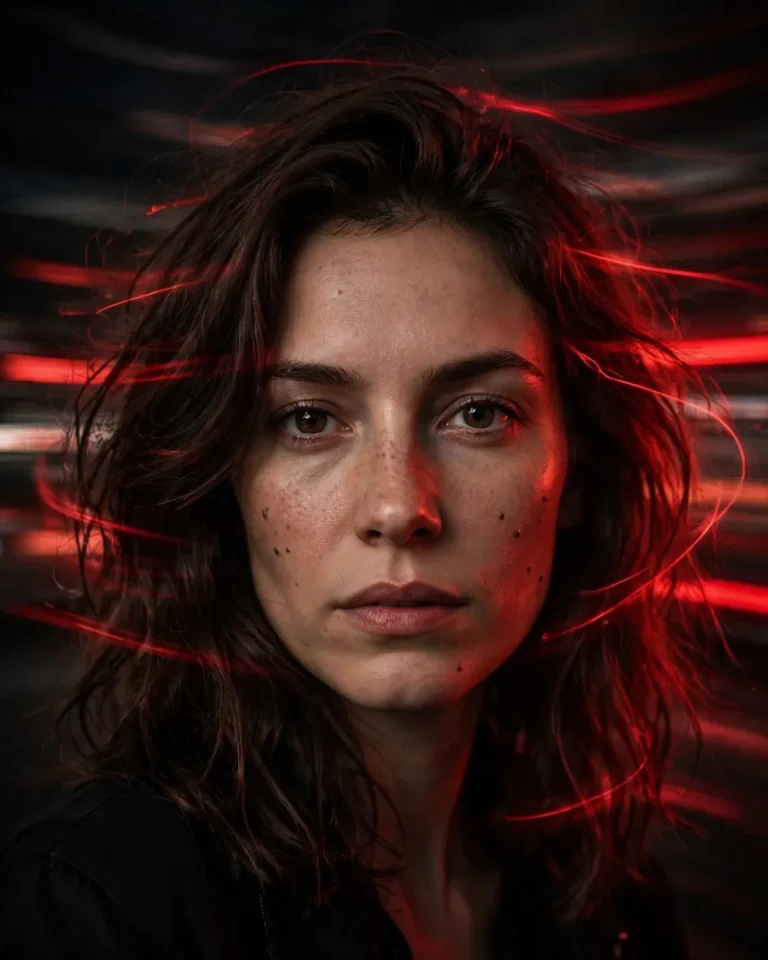
Edit my uploaded photo into a dramatic red-light cinematic portrait. Preserve my exact face, identity, natural skin texture, hairstyle, and facial proportions. Add soft horizontal motion blur across the background and subtle red light trails around the edges of my face. Use deep black shadows, rich red lighting, realistic highlights, and a moody cinematic atmosphere. Keep the eyes and central facial details sharp while the surrounding areas show controlled movement. Create realistic photography with an 85mm lens, shallow depth of field, and a 4:5 aspect ratio. Avoid artificial skin, face reshaping, and excessive blur.
4. Split Motion Blur Portrait
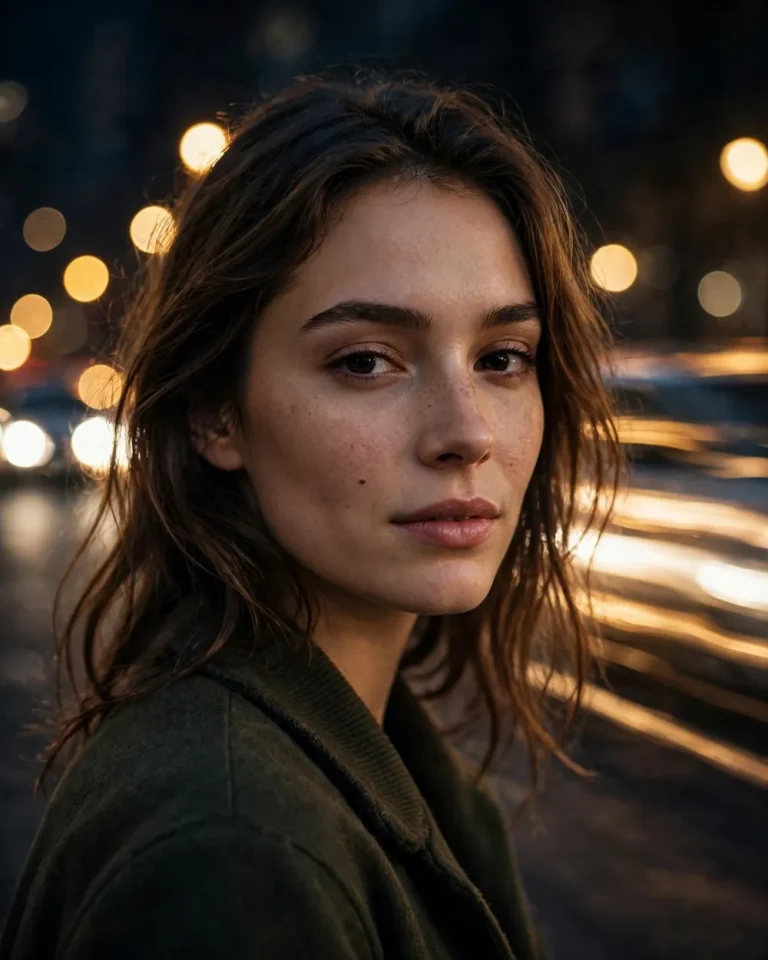
Create a modern split-motion portrait from my uploaded image. Keep the central face sharp and unchanged while adding two soft motion-blurred sections on both sides of the subject. Use controlled horizontal movement, subtle ghosting, and realistic shutter trails. Preserve my exact identity, skin tone, facial structure, hairstyle, and natural expression. Add soft directional studio lighting with a neutral dark background. Make the blur smooth and balanced, with realistic photographic details and no artificial face distortion. Use a vertical 4:5 composition.
5. Streetwear Boy Motion Blur
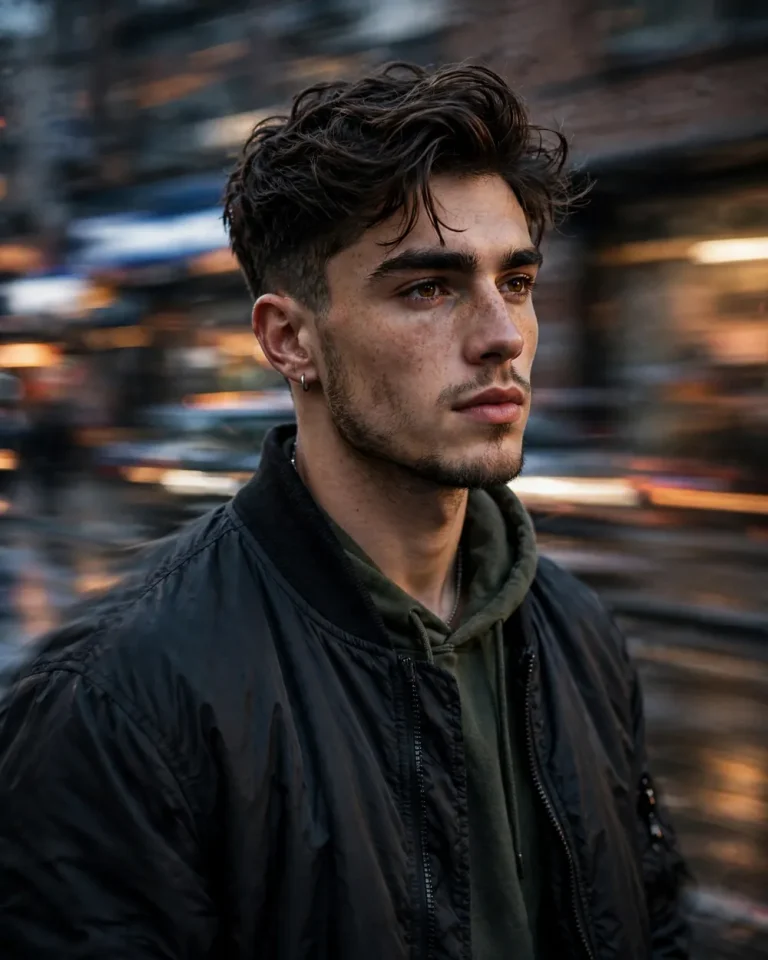
Use my uploaded photo to create a stylish streetwear portrait with a cinematic motion blur effect. Preserve my original face, identity, hairstyle, skin tone, and body proportions. Keep the subject mostly sharp while adding horizontal movement trails to the background and subtle blur around the jacket and shoulders. Add an urban street setting with moody lighting, natural shadows, and a slightly grainy editorial photography look. Use realistic fabric textures, detailed skin, and professional street photography composition. Shoot with a 50mm lens and use a 4:5 aspect ratio.
6. Dreamy Girl Motion Blur
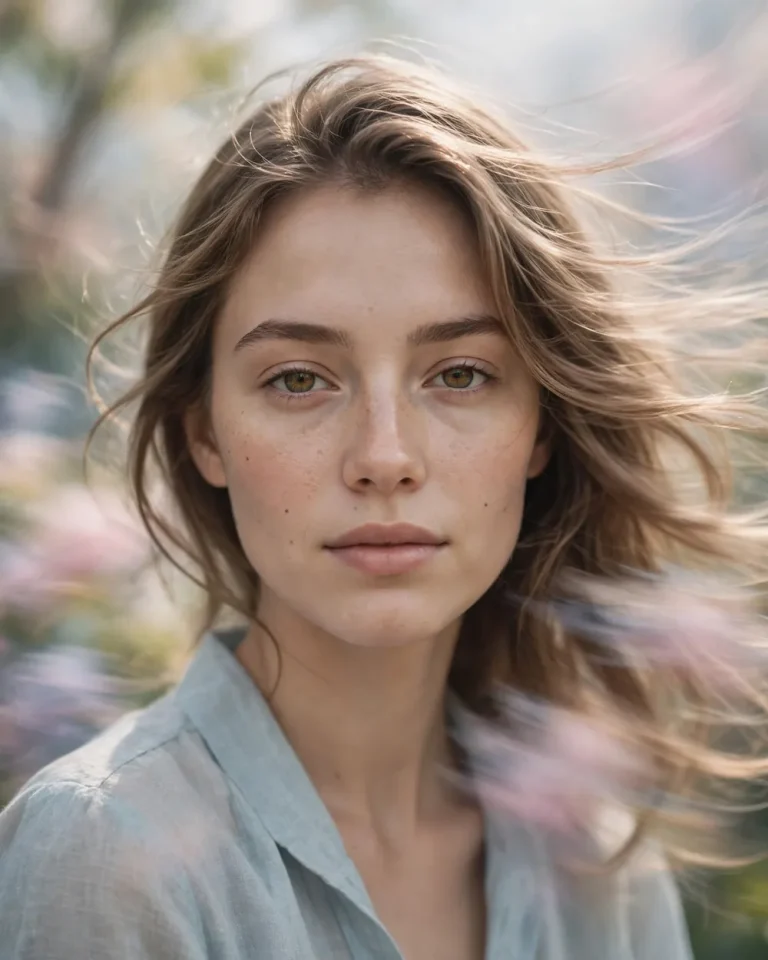
Turn my uploaded photo into a dreamy artistic portrait with soft motion blur. Preserve my exact facial identity, natural skin texture, facial proportions, hairstyle, and original expression. Add gentle movement to the hair and background using smooth directional blur while keeping the eyes and central face details clear. Use soft diffused light, delicate highlights, pastel tones, and a dreamy atmospheric background. The image should look like a real professional portrait captured with a slow shutter speed. Avoid beauty filters, artificial skin smoothing, and facial changes. Use a 4:5 aspect ratio.
7. Hoodie Portrait With Motion Trails
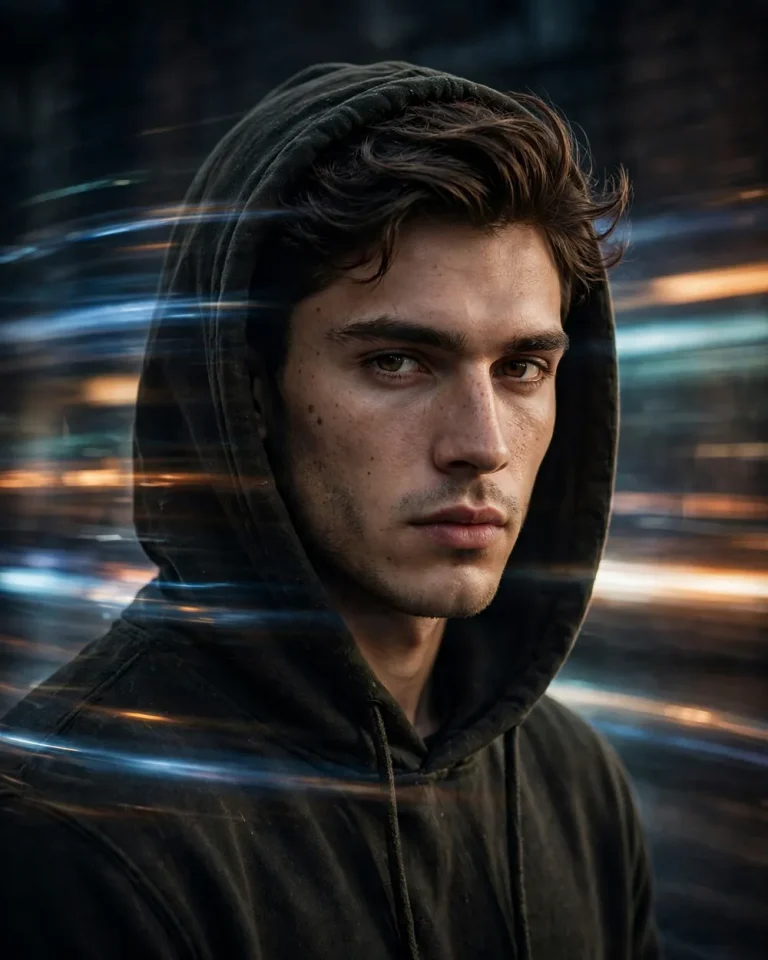
Create a cinematic hoodie portrait using my uploaded image as the reference. Keep my original face, identity, hairstyle, and natural skin details unchanged. Add subtle horizontal motion trails around the hood, shoulders, and background, as if the camera captured movement during a long exposure. Use a dark urban environment, soft directional lighting, realistic fabric texture, and deep shadows. Keep the face sharp and recognizable while the surrounding movement remains smooth and controlled. Use an 85mm lens and a 4:5 aspect ratio.
8. Saree Motion Blur Portrait
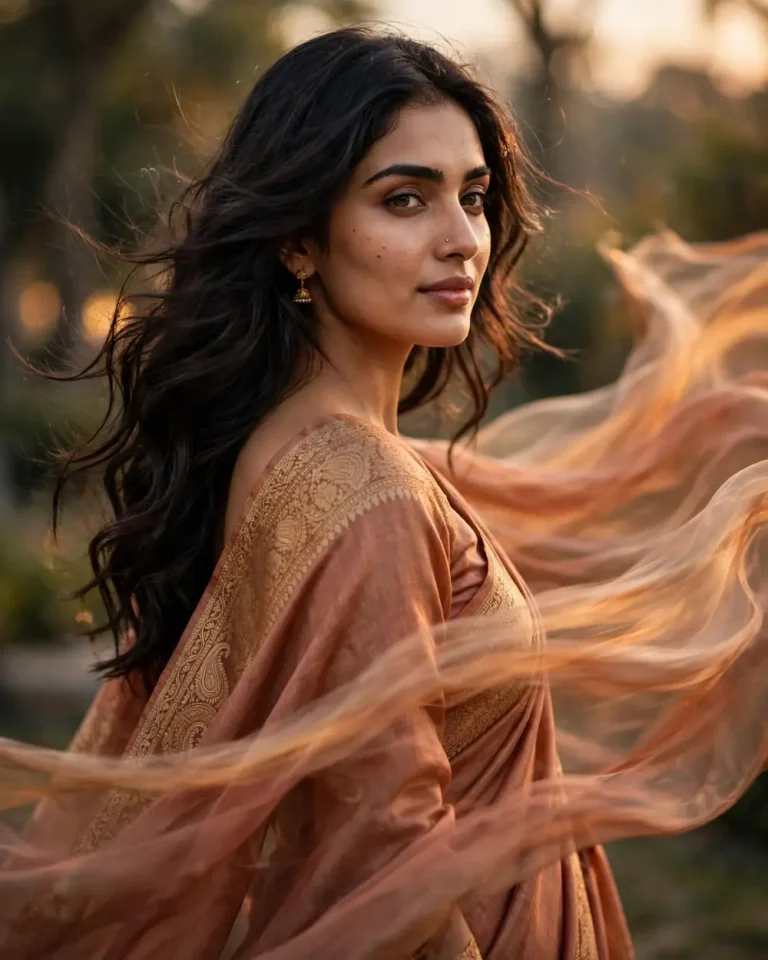
Transform my uploaded photo into an elegant saree portrait with a beautiful flowing motion blur effect. Preserve my exact face, identity, skin tone, facial features, and hairstyle. Add realistic movement to the saree fabric so that its edges create soft flowing trails while the face remains sharp. Use warm cinematic lighting, natural fabric folds, gentle background blur, and a graceful pose. Make the saree texture realistic and detailed, with a professional fashion photography appearance. Avoid changing my facial identity or adding artificial beauty effects. Use a 4:5 aspect ratio.
9. Neon City Motion Blur Portrait
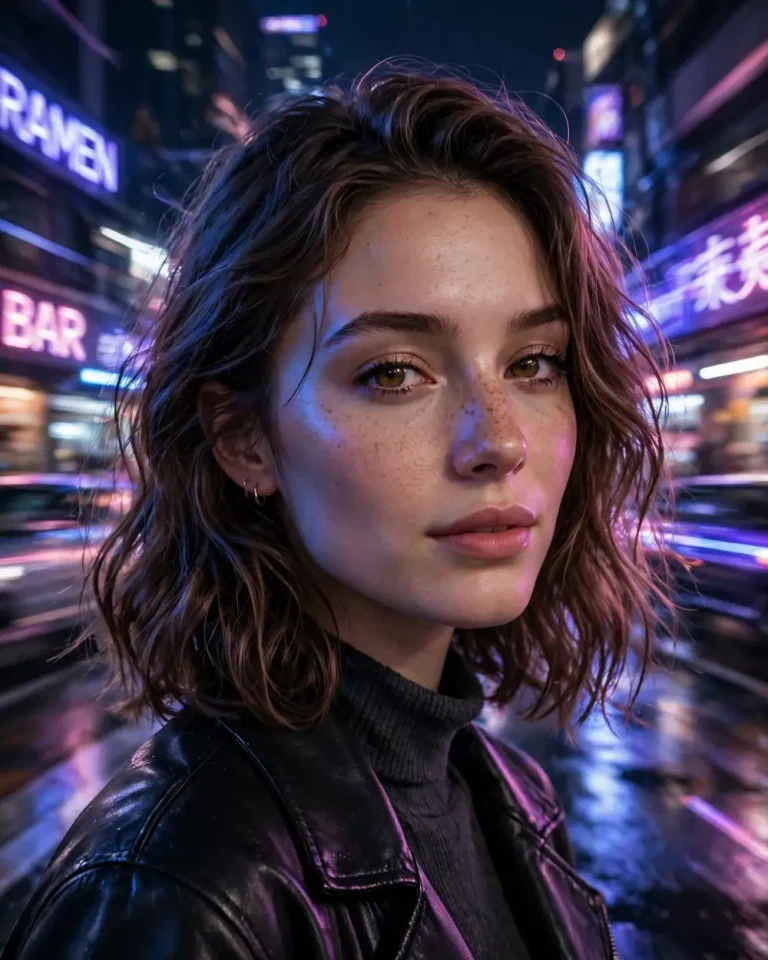
Edit my uploaded portrait into a cinematic neon city photograph. Preserve my exact face, facial structure, skin tone, hairstyle, and identity. Place the subject in a realistic city environment at night with colorful neon signs and soft reflections. Add horizontal motion blur to passing lights and the background while keeping the face sharp. Use blue, purple, and pink lighting with realistic skin highlights and cinematic depth. Create natural light trails without covering important facial details. Use a 50mm lens, realistic night photography, and a 4:5 aspect ratio.
10. Rainy Street Motion Blur
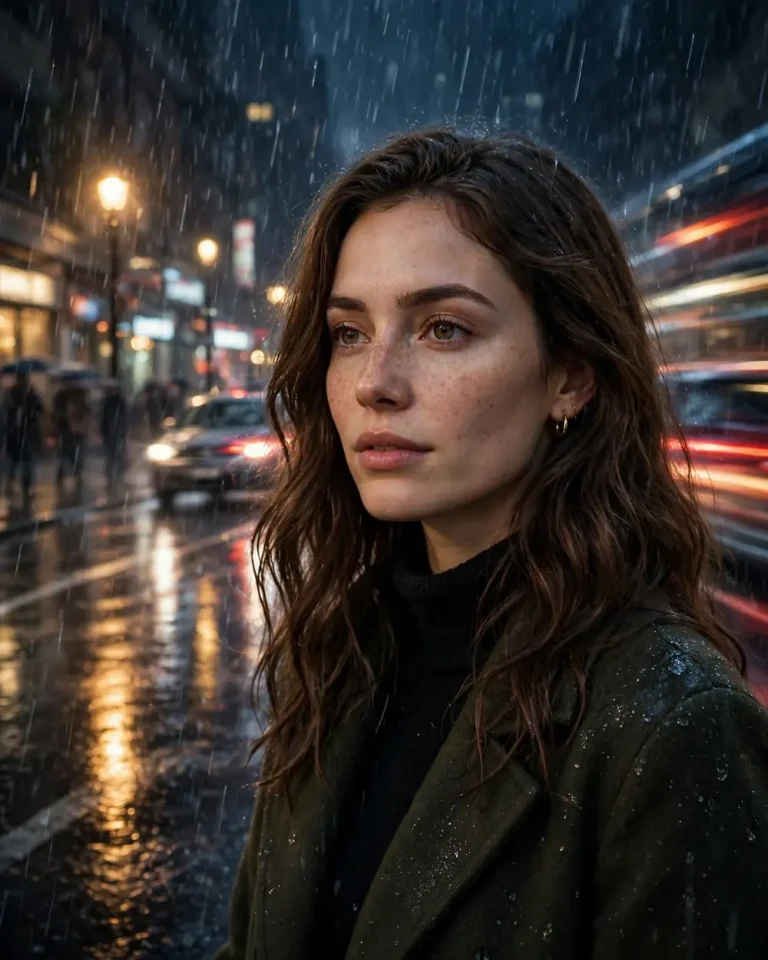
Create a cinematic rainy street portrait using my uploaded photo. Keep my face and identity exactly the same, including natural skin texture, facial proportions, and hairstyle. Add realistic motion blur to passing vehicles, falling rain, and background lights. Use wet road reflections, soft streetlamp glow, and a moody nighttime atmosphere. Keep the main subject sharp while the surrounding environment shows slow-shutter movement. Make the rain and reflections look realistic, not computer-generated. Use cinematic lighting, shallow depth of field, and a vertical 4:5 composition.
11. Blue and Orange Light Trails
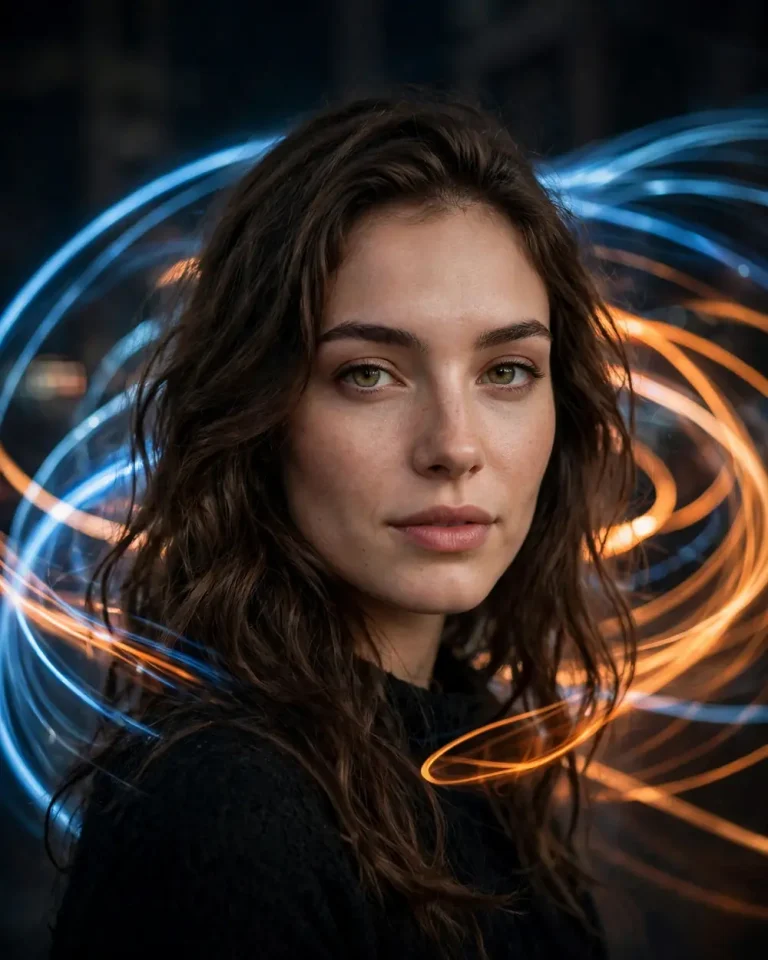
Use my uploaded photo to create a dramatic portrait with blue and orange motion light trails. Preserve my exact identity, facial features, hairstyle, and skin tone. Keep the face clearly visible and sharply focused while adding smooth blue and orange light streaks moving behind the subject. Use a dark cinematic background, realistic reflections, controlled contrast, and professional long-exposure photography. The light trails should appear natural and should not cover or distort the face. Use an 85mm portrait lens and a 4:5 aspect ratio.
12. Headlight Bokeh Motion Blur
Transform my uploaded photo into a nighttime cinematic portrait with moving car headlights in the background. Preserve my original face, identity, facial proportions, and skin texture. Keep the subject sharp while creating soft circular headlight bokeh and horizontal light trails behind them. Use realistic nighttime exposure, subtle reflections, dark shadows, and a professional street photography style. The headlights should create depth without distracting from the face. Avoid artificial facial changes and excessive blur. Use a 50mm lens with shallow depth of field and a 4:5 aspect ratio.
13. Moving Crowd, Still Subject
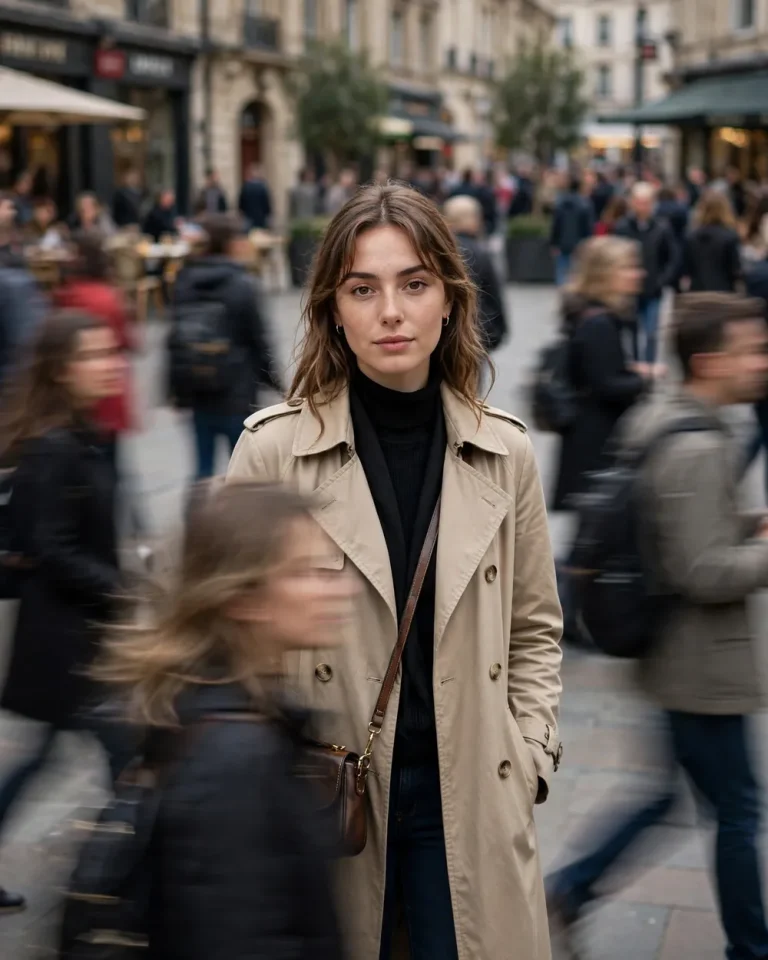
Create a professional long-exposure photograph using my uploaded image. Keep me standing still in the center of the frame with my exact face and identity preserved. Add motion blur to the surrounding crowd so that moving people appear as soft directional trails while the main subject remains sharp. Use a realistic public street or urban plaza background with natural daylight and balanced exposure. Preserve the original facial features, body proportions, clothing details, and skin texture. Make the effect look like real slow-shutter photography. Use a 4:5 aspect ratio.
14. Train Station Long Exposure
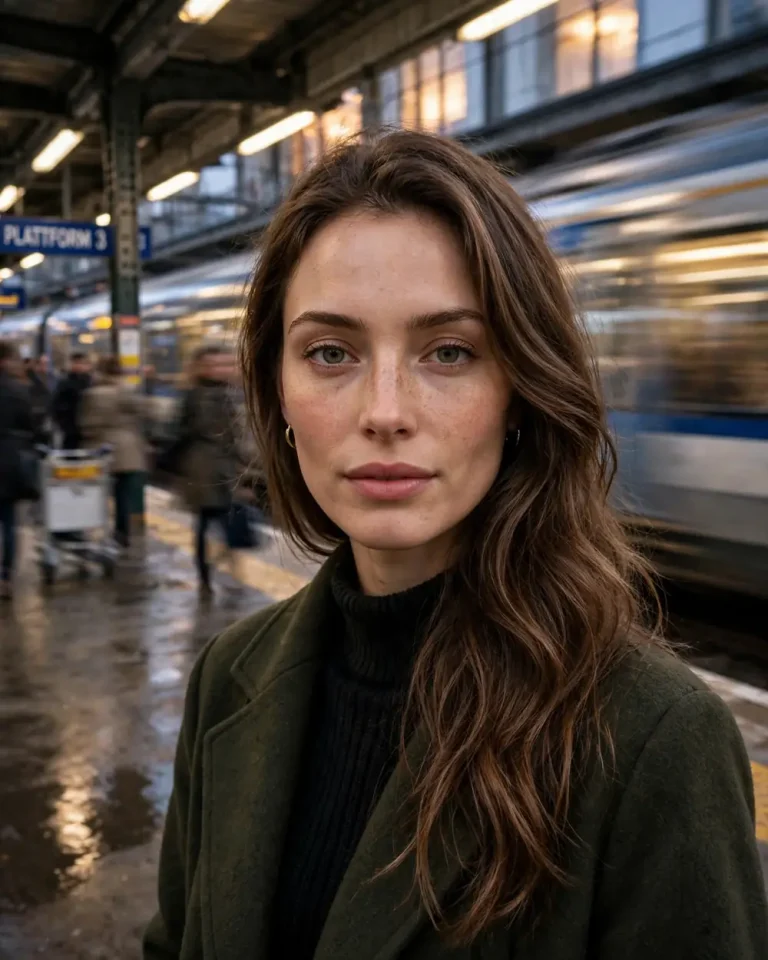
Turn my uploaded photo into a cinematic train station long-exposure portrait. Preserve my exact face, identity, hairstyle, and original appearance. Keep the subject still and sharply focused while adding motion blur to the moving train, passengers, and station lights in the background. Use realistic platform details, subtle reflections, and dramatic natural lighting. Create smooth horizontal movement trails that suggest a long camera exposure. Keep the overall image photorealistic, with clear facial details and realistic environmental textures. Use a vertical 4:5 composition.
15. Indian Market Motion Blur
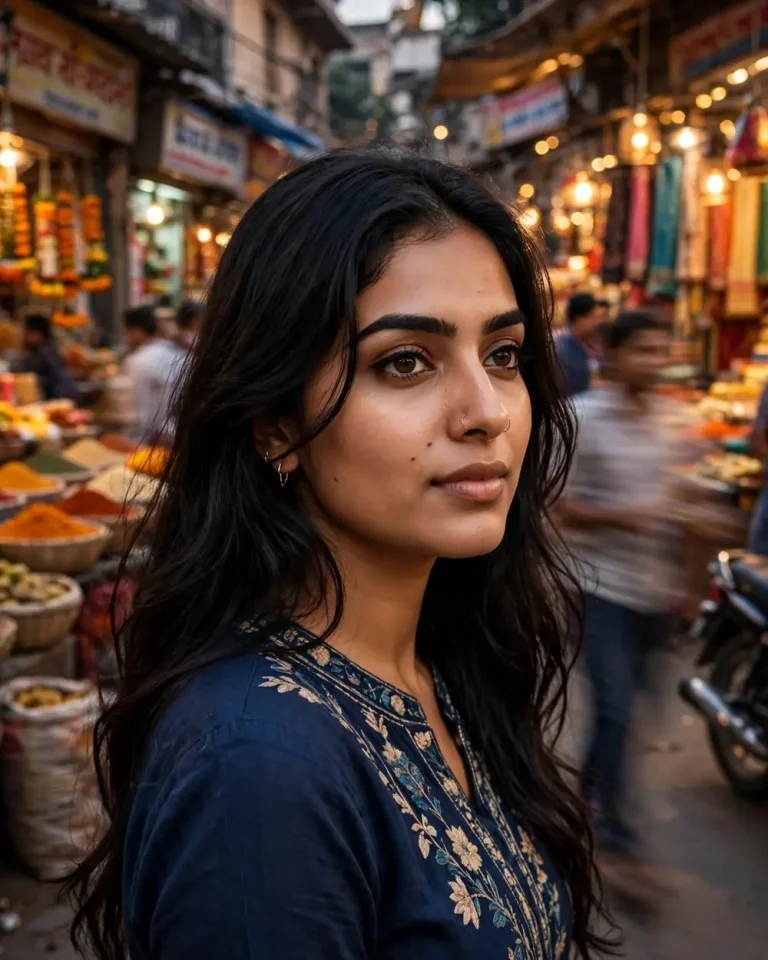
Create a realistic Indian street market portrait using my uploaded photo as the reference. Preserve my exact face, identity, facial proportions, hairstyle, and skin tone. Place me in a lively traditional market with colorful stalls, people, and shop lights. Keep me sharp while adding natural motion blur to passing shoppers and background activity. Use warm ambient lighting, realistic market textures, and a cinematic street photography style. Make the movement look like a real long-exposure photograph without changing my appearance. Use a 4:5 aspect ratio.
16. Romantic Walking Couple Motion Blur
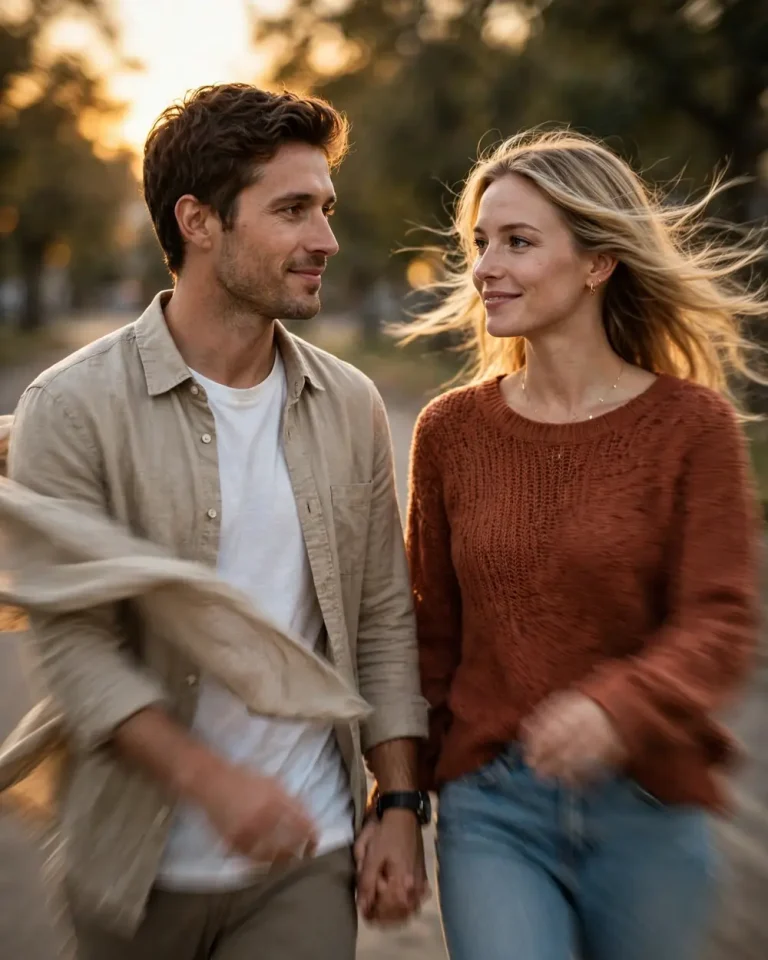
Create a romantic cinematic walking portrait from my uploaded photo. Preserve the exact identities and natural facial features of both people if two reference faces are provided. Show the couple walking naturally while adding subtle motion blur to their clothing, hair, and background. Keep their faces recognizable and detailed. Use warm golden lighting, a softly blurred outdoor environment, natural body proportions, and realistic fabric movement. The image should look like a professional lifestyle photograph captured with a slow shutter speed. Avoid changing expressions or facial identities. Use a 4:5 aspect ratio.
17. Flowing Hair Motion Blur
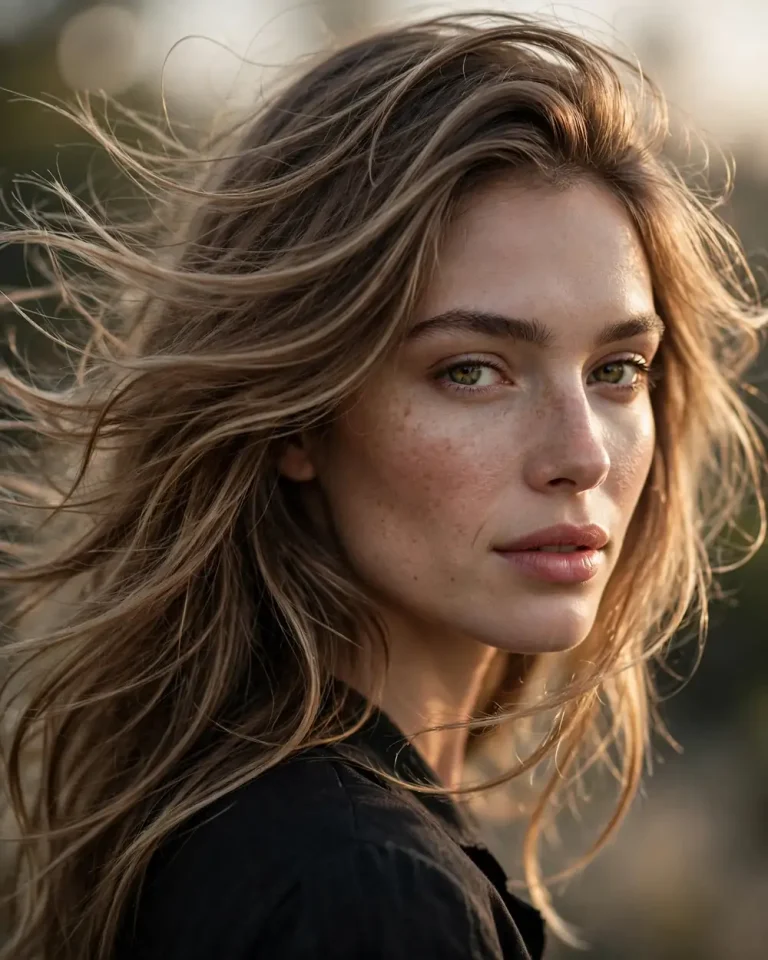
Edit my uploaded photo into a dramatic portrait featuring naturally flowing hair. Preserve my exact face, identity, skin tone, facial structure, and original hairstyle. Add realistic directional movement to the hair, creating soft motion trails while keeping the eyes and face sharp. Use gentle wind movement, cinematic side lighting, and a clean background with shallow depth of field. Maintain individual hair strands and realistic texture instead of turning the hair into an artificial blur. Make it look like professional fashion photography with an 85mm lens and 4:5 aspect ratio.
18. Moving Jacket and Fabric Effect
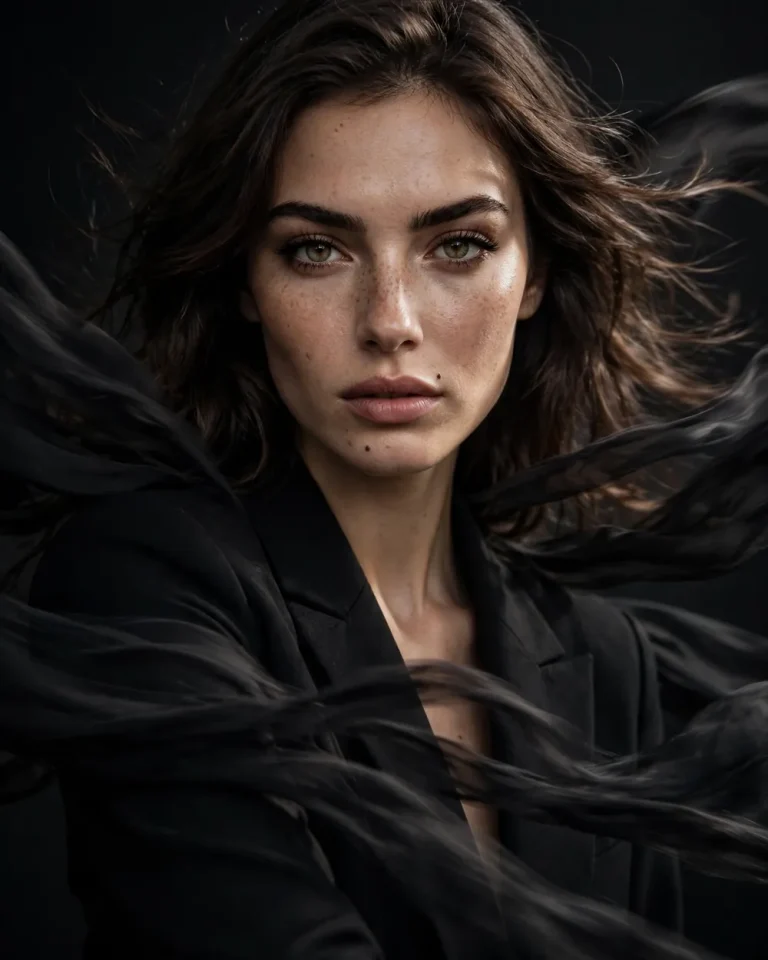
Create a high-fashion motion blur portrait using my uploaded photo. Keep my exact face, identity, facial features, and body proportions unchanged. Add dynamic movement to the jacket and surrounding fabric, creating smooth flowing trails around the shoulders and arms. Keep the central face sharp and detailed. Use dramatic studio lighting, realistic fabric texture, deep shadows, and a professional editorial photography style. Make the motion look physically natural, with no extra limbs or distorted clothing. Use an 85mm lens and a 4:5 aspect ratio.
19. Spinning Dress Motion Blur
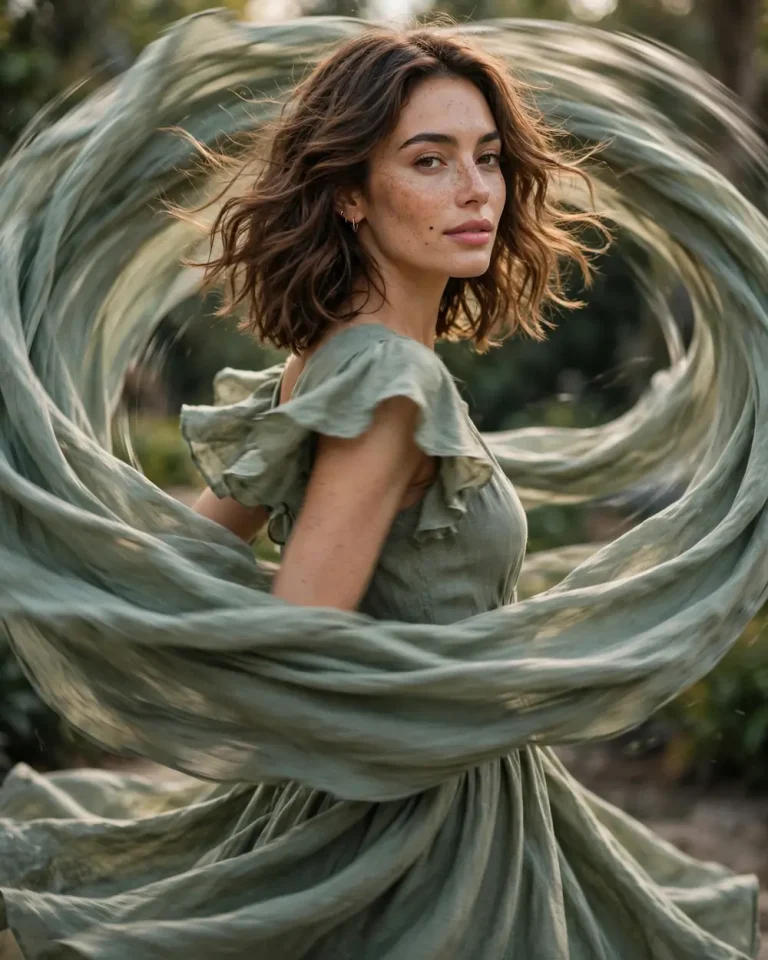
Transform my uploaded photo into an elegant fashion portrait showing a dress spinning naturally. Preserve my exact face, identity, skin tone, hairstyle, and body proportions. Create beautiful circular motion trails in the flowing dress while keeping the face and upper body clearly recognizable. Use soft cinematic lighting, realistic fabric folds, natural movement, and a clean studio or outdoor background. The dress should look like real fabric captured during movement, not an artificial shape. Maintain detailed skin texture and use a vertical 4:5 composition.
20. Running Action Motion Blur
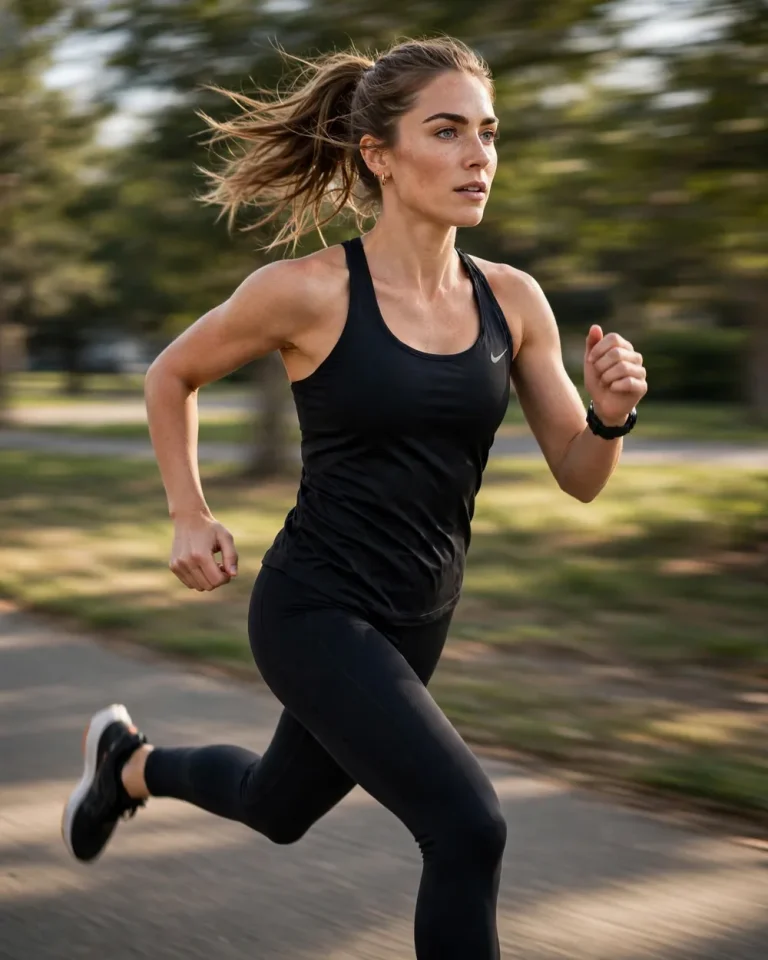
Create a dynamic running action photograph using my uploaded photo as the reference. Preserve my exact face, identity, body proportions, and clothing details. Show me running naturally with realistic movement in the arms, legs, and clothing. Add controlled directional motion blur to the background while keeping the face recognizable. Use a professional sports photography style, natural outdoor lighting, realistic shadows, and a dynamic camera angle. Avoid distorted limbs, extra fingers, or unnatural body positions. Use a 4:5 aspect ratio.
21. Skateboard Motion Blur
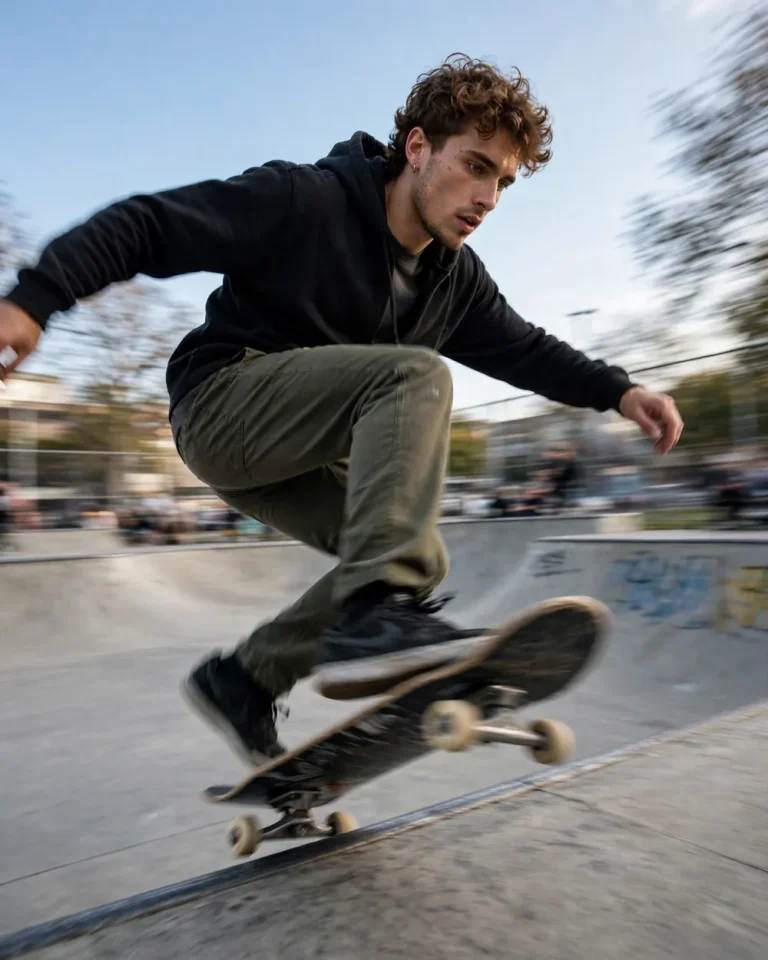
Transform my uploaded photo into a professional skateboard action portrait. Preserve my original identity, facial structure, hairstyle, and body proportions. Show a realistic skateboarding movement with subtle motion blur around the skateboard, shoes, and background. Keep the main subject recognizable and maintain accurate body positioning. Use an urban skate park environment, natural daylight, realistic concrete textures, and a dynamic low-angle camera perspective. The final image should look like a genuine action photograph captured with a fast-moving camera. Use a 4:5 aspect ratio.
22. Football Action Motion Blur
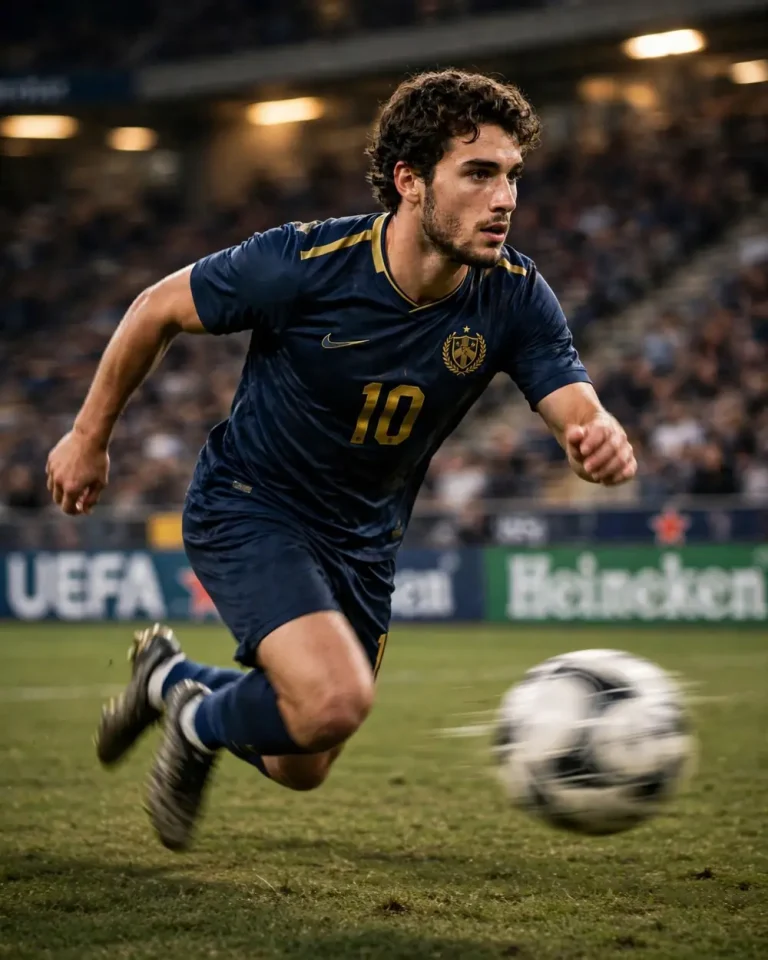
Create a realistic football action photograph from my uploaded image. Preserve my exact face, identity, hairstyle, skin tone, and body proportions. Show a natural football movement with realistic motion in the legs, arms, and jersey. Add controlled motion blur to the moving ball and background while keeping the subject’s face recognizable. Use a professional stadium or football ground setting, dramatic sports lighting, natural shadows, and realistic grass texture. Avoid distorted anatomy, extra limbs, and artificial facial changes. Use a vertical 4:5 composition.
23. Double Exposure Motion Blur Portrait
Turn my uploaded photo into an artistic double-exposure portrait with a subtle motion blur effect. Preserve my exact facial identity, skin texture, hairstyle, and facial proportions. Keep the original face sharp while adding a transparent secondary exposure slightly offset behind the subject. Use soft overlapping silhouettes, smooth directional trails, and cinematic low-key lighting. The background should remain minimal and atmospheric. Make the result look like a real experimental film photograph rather than a digital distortion. Keep the face natural and recognizable with a 4:5 aspect ratio.
24. Abstract Color Motion Blur
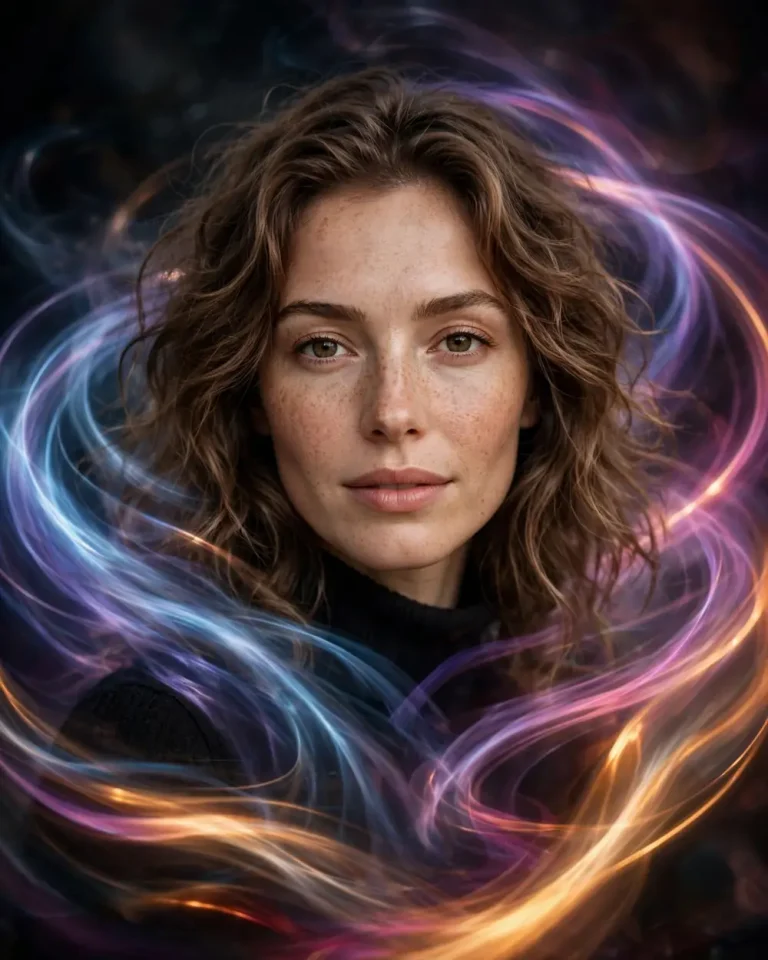
Create an artistic abstract motion blur portrait using my uploaded photo. Preserve my exact face, identity, facial structure, and natural skin texture. Keep the subject recognizable while adding flowing colorful motion trails around the edges of the body and background. Use a combination of soft blue, purple, pink, and warm highlights. Create smooth directional movement with realistic light blending and professional artistic photography. Avoid covering the face with colors or creating unnatural facial features. Use a dark atmospheric background and a 4:5 aspect ratio.
25. Radial Motion Blur Effect
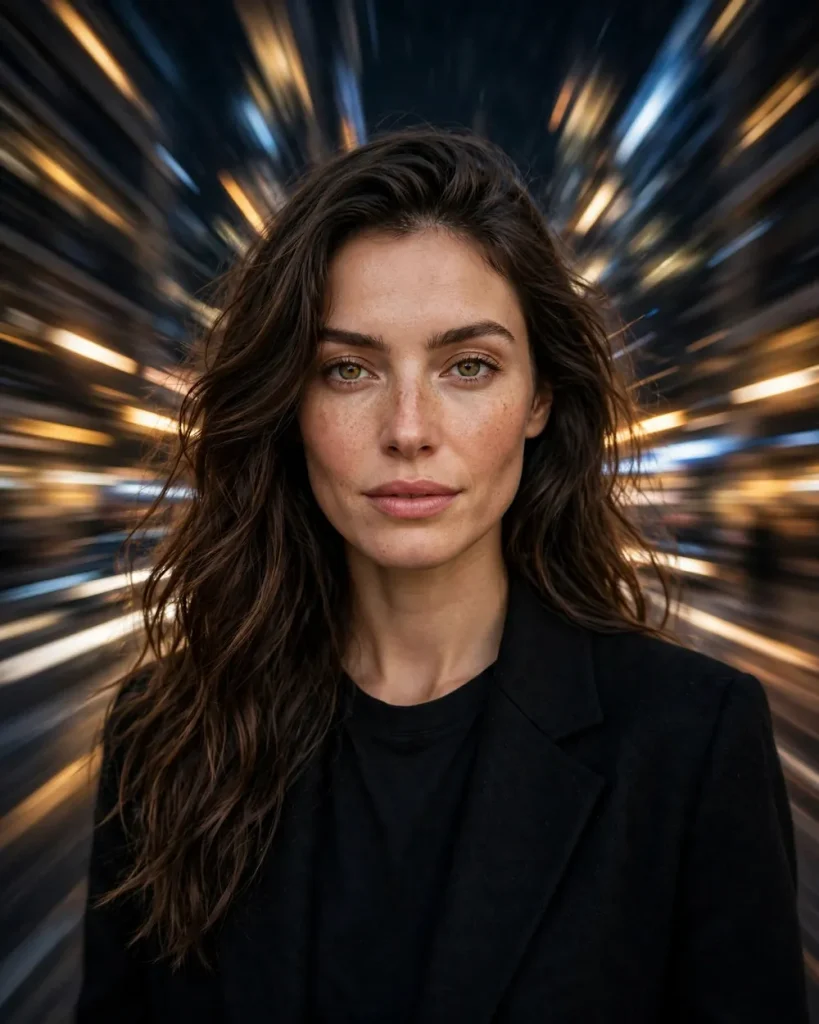
Apply a professional radial zoom motion blur effect to my uploaded photo. Keep my face and central body area sharp while creating outward-moving blur lines around the background, as if the camera zoomed during a long exposure. Preserve my exact identity, facial details, skin tone, hairstyle, and body proportions. Use realistic lighting, strong visual depth, and controlled movement. The radial blur should guide attention toward the subject without distorting the face. Create a cinematic editorial photograph with a 4:5 aspect ratio.
26. Light Painting Motion Blur
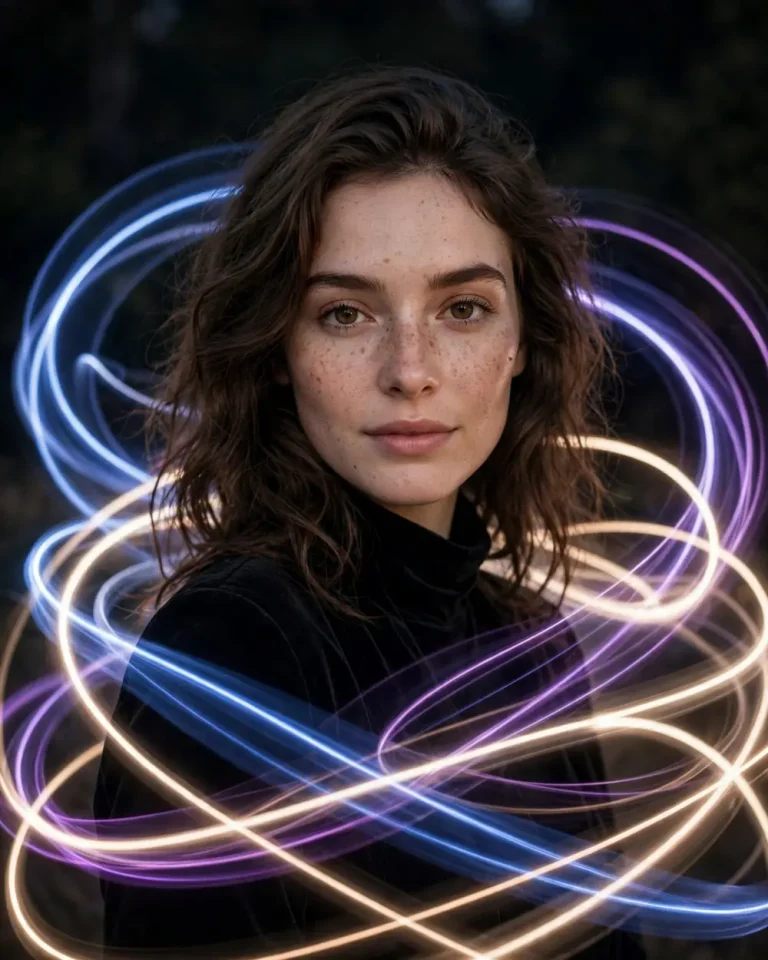
Transform my uploaded photo into a creative long-exposure light painting portrait. Preserve my exact face, identity, skin tone, and facial features. Keep the subject sharply focused while adding smooth glowing light trails around the body and through the background. Use elegant curved lines of blue, purple, and warm white light. Make the trails look like real light painting captured with a slow shutter speed. Maintain realistic skin texture, natural shadows, and cinematic depth. Do not let the light trails cover or alter the face. Use a 4:5 aspect ratio.
27. Black and White Motion Blur
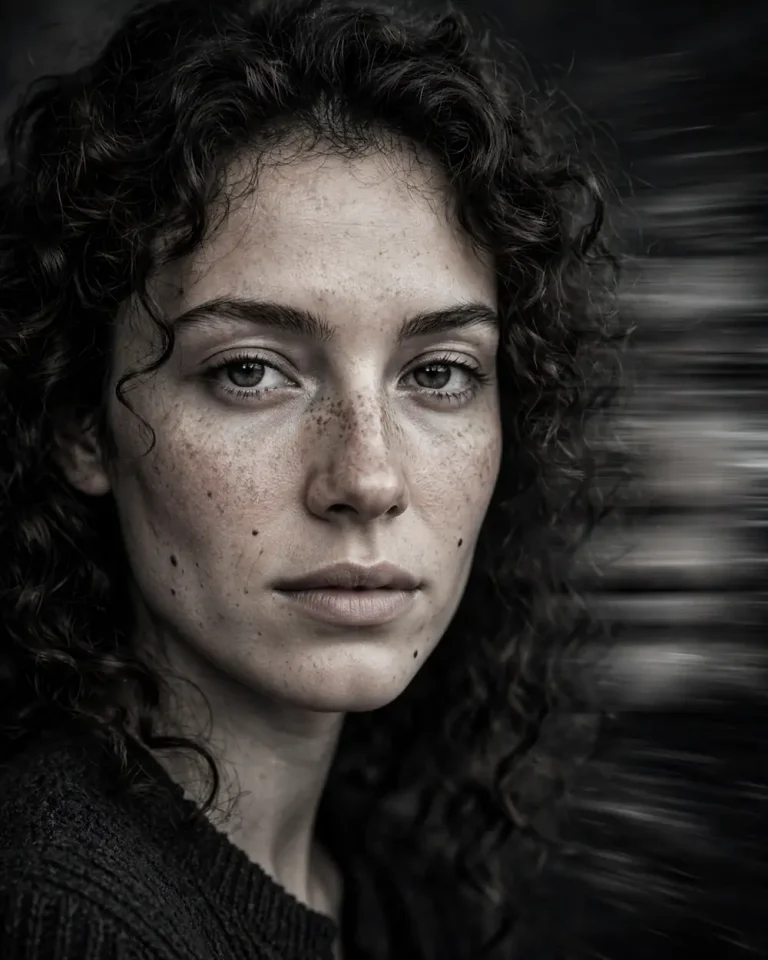
Create a dramatic black-and-white portrait using my uploaded photo. Preserve my exact face, identity, facial structure, hairstyle, and natural skin details. Apply a controlled horizontal motion blur effect to one side of the portrait while keeping the eyes and central facial features sharp. Use strong monochrome contrast, deep shadows, subtle film grain, and realistic tonal transitions. Make the image look like professional fine-art photography captured with a slow shutter speed. Avoid artificial skin smoothing and facial distortion. Use a vertical 4:5 composition.
28. Vintage Film Motion Blur
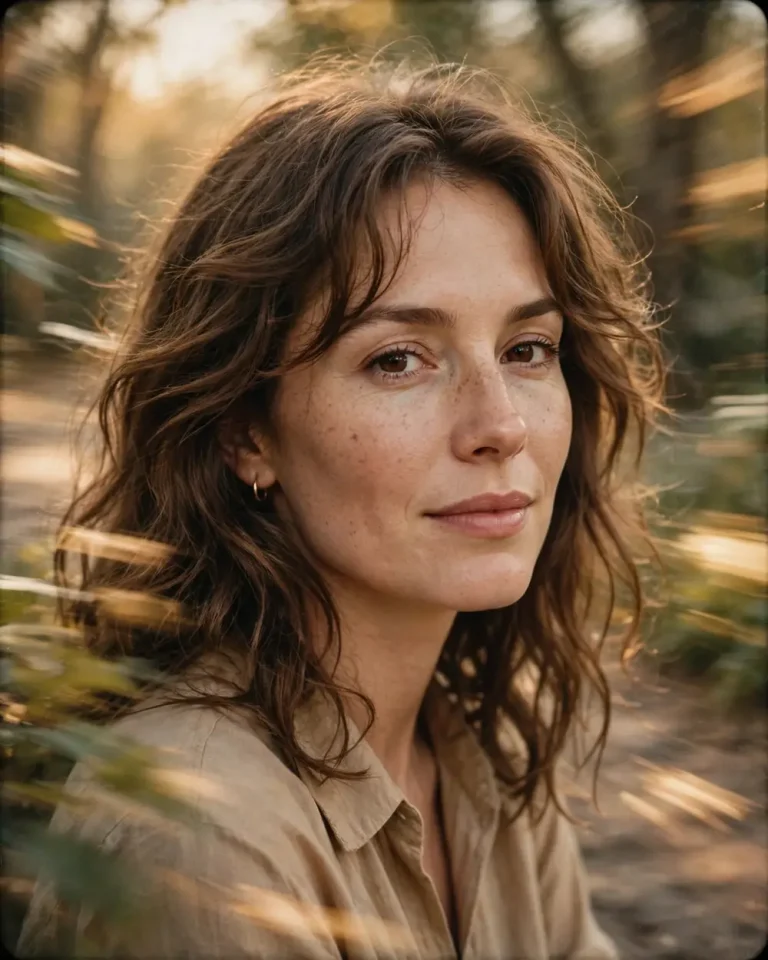
Edit my uploaded photo into a vintage analog film portrait with a subtle motion blur effect. Preserve my exact facial identity, natural expression, skin tone, and hairstyle. Add gentle movement trails to the background and edges of the subject. Use warm faded colors, realistic film grain, soft highlights, natural shadows, and a slightly nostalgic atmosphere. The final image should look like a photograph captured on vintage film with a slow shutter speed. Keep facial details sharp and avoid excessive filters or artificial skin texture. Use a 4:5 aspect ratio.
29. Minimalist Studio Motion Blur
Create a minimalist studio portrait using my uploaded photo as the reference. Preserve my exact face, identity, facial structure, skin tone, and hairstyle. Keep the subject sharply focused against a clean neutral studio background. Add a subtle directional motion blur to one shoulder and the background to create a modern editorial look. Use soft professional studio lighting, realistic skin texture, balanced shadows, and natural clothing details. The effect should be elegant and controlled rather than exaggerated. Use an 85mm lens and a 4:5 aspect ratio.
30. Moody Blue Motion Blur
Transform my uploaded photo into a moody blue cinematic portrait. Preserve my exact face, identity, facial proportions, hairstyle, and natural skin texture. Add smooth horizontal motion blur to the background and subtle blue light trails around the edges of the subject. Use deep navy shadows, cool blue highlights, realistic contrast, and a dark atmospheric environment. Keep the eyes and central face details sharp and recognizable. Make the final image look like professional cinematic photography with natural exposure and a 4:5 aspect ratio.
How to Use a Motion Blur Effect Prompt in Gemini and ChatGPT
You can create a motion blur photo by uploading your original image and giving the AI a clear editing instruction. The quality of the result depends on your reference photo and how specifically you describe the movement.
Follow these steps:
Open Gemini or ChatGPT.
Upload a clear photo that you want to edit.
Choose one motion blur effect prompt from this article.
Copy the complete prompt and paste it into the chat.
Ask the AI to preserve your original face and identity.
Review the generated image and request small corrections if needed.
For better results, use a well-lit photo where your face is clearly visible. Avoid heavily compressed images or photos where the face is already blurred.
How to Get Realistic Motion Blur Without Losing Face Details
The best motion blur photos keep the important details sharp while showing movement in selected areas. If the AI blurs the entire image, your face may become unclear.
Use these instructions to improve the result:
Keep the face sharp: Ask the AI to preserve the eyes, nose, mouth, and facial structure.
Control the blur direction: Specify whether the movement should be horizontal, vertical, circular, or radial.
Choose the blur area: Mention whether the background, hair, clothes, or entire body should show movement.
Use realistic lighting: Describe the light source and atmosphere instead of asking for a random cinematic effect.
Motion blur can be applied in different directions depending on the style you want. Each direction creates a different visual result.
Blur Type
Visual Effect
Best For
Horizontal blur
Side-to-side movement
Street portraits and moving vehicles
Vertical blur
Up-and-down movement
Creative fashion portraits
Radial blur
Movement spreading outward
Dynamic and dramatic photos
Rotational blur
Circular movement
Spinning dresses and artistic edits
Background blur
Moving surroundings
Sharp subject with a busy background
Ghosting effect
Multiple transparent exposures
Experimental portraits
For a cinematic result, horizontal and background motion blur are usually good starting points. Radial and rotational effects work better when you want a more creative image.
Best Lighting for Cinematic Motion Blur Photos
Lighting plays an important role in how motion blur appears. A good lighting setup can make the subject stand out while giving the background a cinematic look.
Red lighting: Creates a dramatic atmosphere and works well with dark backgrounds.
Blue lighting: Gives portraits a cool, modern, and cinematic appearance.
Golden lighting: Adds warmth and works well with outdoor portraits and flowing clothes.
Neon lighting: Creates colorful reflections and works especially well for night photography.
Soft studio lighting: Keeps facial details clear while making the overall portrait look professional.
Choose an aspect ratio based on where you plan to use your generated image. The right composition helps keep the subject and motion trails balanced.
Aspect Ratio
Best Use
4:5
Instagram portraits and social media posts
1:1
Square profile photos and posts
9:16
Instagram Stories, Reels, and TikTok
16:9
YouTube thumbnails and landscape images
For most portrait edits, 4:5 is a good choice because it provides enough space for the subject and surrounding motion effects. Use 9:16 when you want a vertical full-screen image.
Common Mistakes to Avoid When Creating Motion Blur Photos
Even a detailed prompt may produce an unnatural result if the instructions are unclear. Avoid these common mistakes when editing your images.
Blurring the entire face — This can make the person difficult to recognize. Ask the AI to keep the central face and eyes sharp.
Adding too many motion trails — Excessive ghosting can make the image look messy. Specify the number and direction of motion copies.
Ignoring the background — A plain or poorly described background may make the effect look incomplete. Mention the environment and lighting.
Using unclear movement instructions — Simply saying “add motion blur” gives the AI too much freedom. Describe whether the movement should be horizontal, radial, vertical, or rotational.
Changing the original identity — Some AI edits alter facial features. Include clear instructions to preserve the original face, skin texture, and facial proportions.
Correction Prompts for Better Motion Blur Results
If the first generated image does not look right, you do not always need to start again. Use a short correction instruction to improve the result.
Fix an Overly Blurred Face
Keep my original face completely sharp and recognizable. Reduce the motion blur on my eyes, nose, mouth, and facial features. Apply the blur only to the background and outer edges of the subject. Preserve my exact identity and natural skin texture.
Reduce Excessive Motion Trails
Reduce the intensity of the motion blur effect by 50%. Keep only subtle and realistic movement trails. Remove unnecessary ghosting and overlapping shapes while preserving the original composition, facial identity, and lighting.
Make the Background More Dynamic
Keep the subject sharp and unchanged. Add realistic directional motion blur to the background, with natural horizontal movement and subtle light trails. Make the effect look like a professional long-exposure photograph.
Restore Natural Skin Texture
Restore realistic skin texture, including natural pores and fine details. Remove artificial smoothing and plastic-looking skin. Preserve my original facial structure, expression, and identity while keeping the motion blur effect around the subject.
A motion blur effect prompt is an AI editing instruction that tells Gemini or ChatGPT to create the appearance of movement in a photo. It can add blurred backgrounds, moving objects, light trails, ghosting, and long-exposure effects.
Can I create motion blur photos with Gemini?
Yes. Upload your reference photo to Gemini, paste a detailed motion blur prompt, and describe which parts of the image should remain sharp or become blurred. The result depends on the image and the editing capabilities available in your Gemini version.
Can ChatGPT add motion blur to my photo?
Yes. You can upload an image and describe the motion blur effect you want. ChatGPT can help edit images where image editing is available. Include instructions to preserve your original facial identity and important details.
How do I keep my face clear in a motion blur photo?
Tell the AI to keep your eyes, nose, mouth, and central facial features sharp. Ask it to apply motion blur only to the background, hair, clothing, or selected edges of the subject.
Which motion blur effect is best for portraits?
Horizontal motion blur, ghosting, and background motion blur are popular choices for portraits. They create a sense of movement while allowing the main subject to remain recognizable.
Can I create motion blur effects without changing my face?
Yes. Add a clear identity-preservation instruction to your prompt. Ask the AI not to change your face shape, skin tone, facial proportions, hairstyle, or natural expression.
What is the difference between motion blur and background blur?
Motion blur shows movement through directional trails or streaks. Background blur reduces background sharpness to create depth. Motion blur suggests movement, while ordinary background blur mainly separates the subject from its surroundings.
Which aspect ratio is best for motion blur portraits?
A 4:5 aspect ratio works well for most portrait edits. Use 9:16 for vertical videos and stories, 1:1 for square posts, and 16:9 for landscape images.
Why does AI sometimes create unnatural motion blur?
AI may misunderstand the movement direction or apply excessive blur to the entire image. Use specific instructions about the blur area, direction, intensity, and facial details. You can also use correction prompts to improve the result.
Final Thoughts
A good motion blur effect prompt can turn an ordinary photo into a cinematic portrait with realistic movement, light trails, and creative visual effects. The key is to describe the movement clearly while keeping your original facial identity and important details unchanged.
Try different prompts from this collection to create street-style portraits, dreamy edits, fashion photography, long-exposure scenes, and artistic double-exposure images. If the first result is not perfect, use a correction prompt to adjust the blur intensity, lighting, or background.
Experiment with different styles and find the motion blur effect that best matches your photo.